

In the digital age, keeping photos and documents organized can feel like a daunting task. Many people struggle with digital clutter, leading to stress and wasted time searching for important files. The best way to organize digital photos and documents is to create a simple folder system and use consistent naming conventions. This approach helps bring order to digital chaos and gives peace of mind.

A good organization system makes it easy to find what you need when you need it. It also protects precious memories and vital information from getting lost in the shuffle. With just a few simple steps, anyone can tame their digital life and enjoy the benefits of a well-organized collection of photos and documents.
Getting Started with Organization

Organizing digital photos and documents can seem daunting. A good plan and the right tools make it much easier. Let’s look at how to begin.
Understanding Your Goals
Think about why you want to organize your files. Do you need quick access to work documents? Are you looking to preserve family memories? Your goals will shape your approach.
For some, the aim is to find photos quickly, while others may want to free up storage space. Professional photographers might also need a system for client work.
Write down your main goals. This will guide your choices later on.
The First Step: Gathering Your Digital Assets
Start by finding all your digital files. Look on your computer, phone, and tablet. Don’t forget external hard drives and cloud storage.
Make a list of where everything is. This helps you see the big picture.
Consider making a backup before you start moving things around. It’s always good to have a safety net.
Choosing the Right Tools and Software
Pick tools that fit your needs. Many people use folders on their computer for a simple system.
Photo organizer software can be great for big collections. It can sort by date, tag faces, and more.
For documents, think about using cloud storage. It makes sharing and accessing files easy.
Try out a few options. See what feels right for you. Remember, the best system is one you’ll use.
Related Posts
How to Make Your Own Digital Scrapbook: A Fun and Easy Guide for Beginners
10 Easy Ways For Seniors To Protect Against Identity Theft
The Best Online Exercise Platforms for Seniors
Top 5 Password Managers for Seniors To Simplify Security
Unlocking Peace of Mind: Why Seniors Need a Password Manager
Creating a Reliable Filing System

A good filing system helps you find digital photos and documents quickly. It uses clear folder names and file naming rules. Let’s look at how to set this up.
Designing a Folder Structure
A smart folder structure is key for organizing digital files. Start with main folders like “Photos” and “Documents”. Inside these, make subfolders by year or topic. For photos, you might have “2024 > Vacation > Beach Trip”. For documents, try “Finances > Taxes > 2024”.
Keep folder names short and clear. Use words that make sense to you. Avoid special characters or spaces in folder names. This helps your computer read them better.
Think about how you look for files. Do you search by date or event? Make your folders match how you think. This makes finding things easier later.
File Naming Conventions
Good file names help you find what you need fast. Use a system that works for all your files. For photos, try “YYYY-MM-DD_EventName”. Like “2024-10-19_BeachDay”. This puts photos in date order.
For documents, start with the date too. Add a short description. “2024-10-19_ElectricBill” works well. Use underscores instead of spaces. This helps computers read file names better.
Be consistent with your naming. It makes searching easier. You can find files even if you forget where you put them. Use all lowercase letters to avoid mix-ups.
Don’t make file names too long. Aim for clear and short. This helps when you need to share files or move them between devices.
Managing Your Digital Images

Keeping digital photos organized saves time and makes finding memories easier. Good practices include removing duplicates, sorting by date, and using face recognition tools.
Eliminating Duplicate Images
Duplicate photos occupy space and make it hard to find the best shots. Many photo management tools can spot and remove duplicates automatically. Users can also check file metadata to find copies manually.
Programs compare file names, sizes, and content to find matches. Once found, users can delete extras or move them to a separate folder. This cleanup step frees up storage and simplifies photo collections.
Organizing Photos by Date and Event
Sorting photos by date helps track memories over time. Most cameras and phones add date info to image files automatically. Users can create folders for each year and subfolders for months or events.
Naming folders clearly makes browsing easier. For example: “2024-10-Halloween Party” or “2024-12-Christmas”. Some tools can group photos by date taken and suggest event names based on location data.
Utilizing Facial Recognition Features
Face recognition makes finding photos of specific people quick and easy. Many photo apps can scan images and group faces together. Users can then tag people in batches, saving time over manual labeling.
This feature helps create virtual albums for family and friends. It’s great for making personalized gifts or sharing memories. Privacy settings let users control who can see face tags in shared albums.
Choosing Storage Solutions

Picking the right storage for your digital photos and documents is key. There are a few main options to think about, each with pros and cons.
Internal vs. External Storage Options
Your computer’s hard drive is a common place to keep files. It’s quick and easy to access. But space can run out fast, especially with lots of photos.
External hard drives offer more room. They’re portable and can hold tons of files. You can get 1TB or more of space for a good price.
One downside is that you need to plug them in to use them. They can also break if dropped.
Cloud Storage Services: Pros and Cons
Cloud storage lets you keep files online. Popular options include:
• Google Drive • Dropbox • iCloud
Pros:
- Access files from any device
- Easy to share
- Auto-backup features
Cons:
- Monthly fees for extra space
- Need internet to access files
- Privacy concerns
Google Drive gives 15GB free. It works well with other Google apps.
Backup Strategies for Safety
It’s smart to have multiple copies of your files. This guards against data loss.
A good rule is the 3-2-1 method:
- 3 copies of your data
- 2 different storage types
- 1 copy off-site
You could keep files on your computer, an external drive, and in the cloud. This covers all bases.
For really important stuff, consider a safe deposit box at a bank. It protects against fires or theft at home.
Regular backups are key. Set a schedule and stick to it. Many cloud services can do this automatically.
Utilizing Photo Management Software
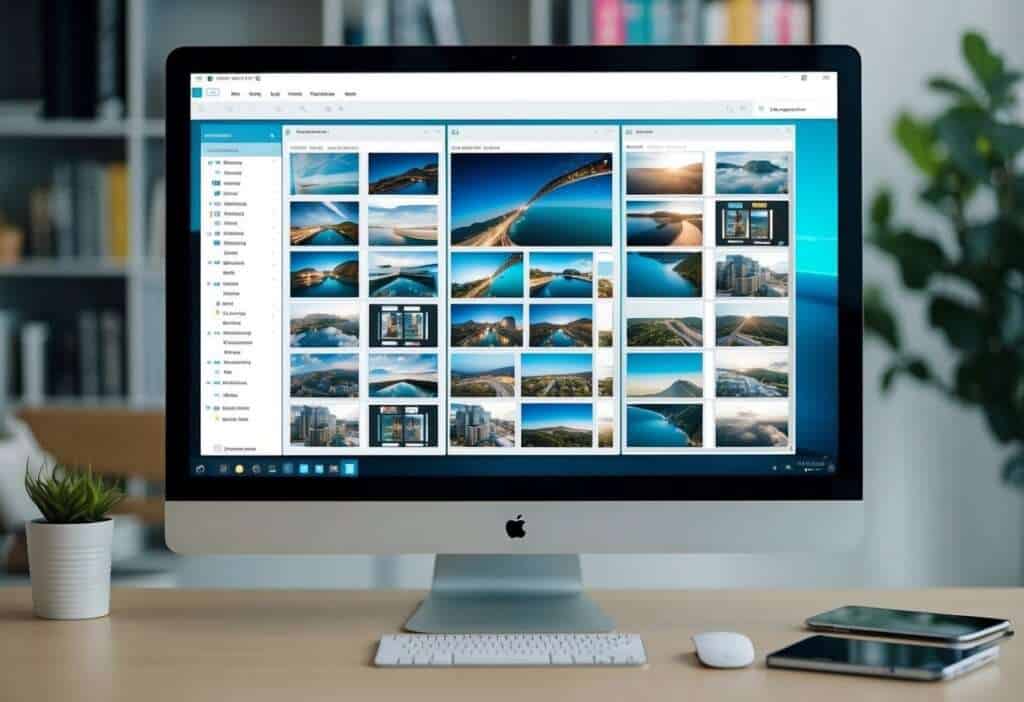
Photo management software helps organize digital photos easily. These tools offer features like tagging, sorting, and searching to keep your photo collection tidy.
Adobe Lightroom and Bridge
Adobe Lightroom is a popular choice for photo organizing and editing. It allows users to tag photos with keywords, rate them, and group them into collections.
Lightroom’s search function is powerful, letting you find photos by date, location, or camera settings. The software also has basic editing tools for quick touch-ups.
Adobe Bridge is another option. It works well for managing large sets of photos and other media files. Bridge lets users add metadata, create collections, and batch rename files.
Google Photos and Apple Photos
Google Photos is a free, cloud-based photo management app. It uses AI to sort photos by people, places, and things. The app backs up photos automatically and frees up space on your device.
Apple Photos is built into Apple devices. It organizes photos by date and location. The app has features like facial recognition and smart albums.
Both apps offer sharing options and basic editing tools. They work well for casual photographers who want simple, automated organization.
Alternative Software Solutions
For those seeking different options, there are many other photo management tools. ACDSee Photo Studio is a powerful program that combines organizing and editing features.
Movavi Photo Manager is good for sorting large photo collections. It has tools for removing duplicates and organizing by date or location.
Excire Foto is another choice. It uses AI to tag and sort photos automatically. This saves time in organizing large photo libraries.
These alternatives often offer unique features or specializations. Some focus on facial recognition, while others excel at metadata management.
Integrating Mobile Devices into Your Workflow

Mobile devices play a key role in capturing and storing digital photos and documents. Getting them to work smoothly with your other systems can make organizing much easier.
Syncing With Cell Phones and Tablets
Auto-sync over Wi-Fi is a great way to keep mobile photos organized. Most cloud storage apps offer this feature. To set it up, install the app for your preferred cloud service on your phone or tablet. Go into the settings and turn on auto-sync.
Give the app permission to access your camera roll. This lets it copy new photos to your cloud storage automatically. You won’t need to manually transfer files anymore.
Some apps can sync selected folders only. This helps if you don’t want to back up everything. You can choose to sync just your camera photos, for example.
Remember to connect to Wi-Fi before syncing large batches of files. This saves mobile data and speeds up the process.
Dealing with Camera Rolls and Social Media
Camera rolls can get messy fast. It’s smart to clean them up regularly. Delete blurry or duplicate photos right away. This frees up space and makes organizing easier later.
Sort photos into albums on your phone. Create albums for different events, trips, or categories. This makes it simpler to find and share specific images.
For social media photos, save the ones you want to keep to your camera roll. Many apps let you download your own posts. You can then organize these like your other photos.
Consider using a separate app to collect photos from different social networks. This creates a backup of your online memories in one place.
Physical Photo Integration

Bringing physical photos into your digital collection preserves memories and creates a unified archive. This process involves careful handling of old photos and thoughtful merging of digital and physical collections.
Scanning Old Photos
Start by gathering all your physical photos and sorting them. Remove any duplicates or poor-quality images. Clean the photos gently with a soft, lint-free cloth.
Use a flatbed scanner for best results. Set the scanner to at least 300 dpi for standard photos and 600 dpi for smaller ones. Scan in batches, organizing as you go.
For delicate or oversized items, consider professional scanning services. They have special equipment for handling fragile photos and large albums.
After scanning, store original photos in acid-free boxes or albums. Keep them in a cool, dry place to prevent damage.
Merging Digital and Physical Photo Collections
Create a system to organize your newly scanned photos with your existing digital ones. Use consistent naming conventions for all files.
Group photos by year, event, or theme. This makes browsing easier and helps tell your story.
Consider creating digital photo books to preserve the feel of physical albums. Many online services offer easy-to-use templates.
Back up your entire collection regularly. Use cloud storage and external hard drives for extra safety.
Add tags and descriptions to your digital photos. This helps with searching and adds context to your memories.
Sharing and Collaborating with Family Members

Sharing photos with loved ones brings families closer together. It lets everyone enjoy special moments and stay connected, even when far apart.
Creating Shared Albums and Libraries
Family photo sharing has become easier than ever. Many apps and services now offer ways to create shared albums or libraries.
To get started, users can set up a group for family members. They can then invite relatives to join. Once everyone’s on board, sharing becomes a breeze.
For big events like weddings, shared albums are super handy. They let everyone pitch in their photos. This way, no one misses out on any great shots.
Some services even use AI to group similar photos. This helps keep things tidy and easy to browse.
Privacy Considerations for Sharing
When sharing family photos, privacy is key. It’s important to think about who sees what.
Most sharing platforms offer privacy settings. Users can choose who gets access to their shared albums. They might pick just close family or a wider circle of friends.
It’s smart to chat with family members about sharing rules. Some might not want certain photos shared widely.
For kids’ photos, extra care is needed. Parents should agree on what’s okay to share and with whom.
Remember, once a photo is online, it can be hard to fully remove. It’s always best to think twice before sharing.
Maintaining Your Organized System

Keeping digital photos and documents organized is an ongoing process. It takes regular attention and smart habits to keep everything tidy long-term.
Routine Check-ups and Updates
Set a regular schedule to review your digital files. Maybe do it monthly or quarterly. During these check-ups, look for items in the wrong spots. Move misplaced files to their correct folders.
Delete duplicates and unnecessary files. This frees up storage space. It also makes finding what you need easier.
Add tags or update metadata for recent photos and documents. This helps with searching later. Consider using photo organization software to make this task simpler.
Back up your files regularly. Use cloud storage or an external hard drive. Or both for extra safety.
Educating Others on Your System
If family members or coworkers share access to the files, teach them your system. Show them where different types of files go. Explain your naming conventions.
Write down the rules and share them. Maybe create a simple guide. Post it somewhere everyone can see it.
Ask for feedback. See if others find the system easy to use. Be open to suggestions for improvement.
Set up folders with the right access permissions. Make sure people can only see what they need to.
The Final Step: Reflection and Improvement
Every few months, think about how well the system is working. Are files easy to find? Is the structure still logical?
Look for pain points. Maybe certain folders are getting too full. Or some file types don’t fit well in the current setup.
Be willing to make changes. The perfect system evolves over time. It grows with changing needs and new technologies.
Try new tools or methods. There might be better ways to sort digital photos or manage documents.
Ask for input from others who use the system. Their feedback can spot issues you might miss.
Exploring Advanced Techniques

Advanced photo organization techniques can take your digital collection to the next level. These methods help manage large libraries and make finding specific images easier.
Tagging and Metadata Best Practices
Tagging photos is a powerful way to organize digital images. Add keywords to describe the content, people, or events in each picture. This makes searching much simpler later on.
Use descriptive tags like “beach vacation” or “birthday party” for big events. Include names of people, locations, and dates when possible.
Many digital cameras add metadata automatically. This includes info like camera settings and GPS location. Check your camera’s manual to learn how to use this feature.
Make use of star ratings or color codes to mark your favorites. This helps quickly find your best shots when you need them.
Utilizing DAM Systems for Large Collections
Digital Asset Management (DAM) systems are great for organizing huge photo libraries. These tools offer advanced search, tagging, and sorting features.
DAM systems can handle various file types, including raw files from digital cameras. They make it easy to find and use photos across different projects or teams.
Some popular DAM options include Adobe Lightroom and Capture One. These programs offer powerful editing tools alongside organizational features.
For very large collections, consider hiring a professional photo organizer. They can set up a custom DAM system and create a workflow that fits your needs.
DAM systems often allow for batch editing of metadata. This saves time when organizing thousands of images at once.
Turning Photos into Treasures

Photos capture precious moments. With a bit of creativity, they can become unique keepsakes. Let’s explore ways to transform digital images into cherished mementos.
Creating Custom Photo Books
Photo books are a great way to preserve memories. They bring favorite photos to life in a tangible format. Many online services make it easy to design and order photo books.
To start, pick a theme for the book. It could be a family vacation, a child’s first year, or a wedding album. Next, choose the best photos that fit the theme.
Arrange the photos in a pleasing layout. Add captions to tell the story behind each image. Some services offer templates to make the process easier.
Consider the book’s size and cover type. Hardcover books are durable, while softcover ones are more affordable. Don’t forget to proofread before ordering!
Designing Personalized Photo Gifts
Photos make great gifts when turned into personalized items. These unique presents show thoughtfulness and creativity. Many options exist for photo-based gifts.
Popular choices include:
- Photo mugs
- Custom phone cases
- Canvas prints
- Photo blankets
- Personalized calendars
To create these gifts, select high-quality images. Make sure the photos are clear and well-lit. For best results, use a professional family photographer for important events.
Consider the recipient’s taste when choosing the gift type. A coffee lover might appreciate a photo mug, while a homebody might prefer a cozy photo blanket.
Many online services offer easy-to-use design tools. They guide users through the process of uploading photos and customizing the gift.
Frequently Asked Questions

Digital photo organization can be tricky. These common questions address key methods and tools to help manage your growing collection of memories.
What are the best methods for organizing digital photos on my computer?
Naming folders by date and event is a good start. Creating a consistent file naming system also helps.
Users can sort photos into main categories like vacations, holidays, and family events. Tagging photos with keywords makes them easier to find later.
Can you suggest some software options for organizing digital photos more efficiently?
Popular choices include Adobe Lightroom, Google Photos, and Apple Photos. These programs offer features like facial recognition and automatic tagging.
Some users prefer simpler options like FastStone Image Viewer or IrfanView for basic organizing and editing tasks.
What’s the most effective way to categorize photos into folders on my phone?
Most phones allow users to create albums within the default photo app. Naming these albums by date or event works well.
Some people use third-party apps for more advanced organizing. These often sync with cloud storage for backup.
How can I manage and organize my digital photos using an external hard drive?
External drives provide extra storage space for large photo collections. Users can create a folder structure similar to their computer’s setup.
Regular backups to the external drive help protect photos. Some drives come with software to automate this process.
What strategies can I use to organize decades of photo collections, like 30 or 50 years worth of memories?
Scanning old prints is the first step. Then, organizing by year and major life events helps create a timeline.
Adding descriptive tags to scanned photos aids in searching later. Family members can help identify people and places in older photos.
What are the top online tools or services for organizing a large number of digital photos?
Cloud storage services like Google Drive, Dropbox, and iCloud offer ways to organize and share photos online. These sync across devices for easy access.
Dedicated photo sites like Flickr and SmugMug provide more advanced organizing features. They often include options for creating albums and galleries.


