

Staying safe online is important for everyone, especially seniors who may be less familiar with digital security. Password managers can help protect personal information and make it easier to use strong, unique passwords for all accounts.
The top password managers for seniors in 2024 include 1Password, NordPass, and Keeper. These tools offer user-friendly interfaces, strong security features, and helpful extras like emergency access for family members.
Using a password manager can simplify online security for seniors. It removes the need to remember multiple complex passwords and reduces the risk of using weak or repeated passwords across different sites. With just one master password to remember, seniors can enjoy safer and more convenient access to their online accounts.
Understanding Password Managers
Password managers are digital tools that securely store and organize login information. They offer convenience and enhanced security for seniors who may struggle with remembering multiple complex passwords.
What Are Password Managers?
Password managers are software applications that store and manage online credentials. They create, remember, and automatically fill in passwords for various accounts. These tools use strong encryption to protect sensitive data.
Most password managers offer browser extensions and mobile apps. This allows users to access their passwords across different devices. Some popular features include:
• Password generation • Secure password sharing • Two-factor authentication • Dark web monitoring
Password managers typically require a master password. This single password grants access to all stored information. It’s crucial to choose a strong, memorable master password.
Benefits for Seniors
Password managers offer several advantages for older adults. They eliminate the need to remember multiple complex passwords. This is especially helpful for seniors who may have memory concerns.
Improved security is a key benefit. Password managers generate and store strong, unique passwords for each account. This reduces the risk of password reuse and weak passwords.
Many password managers have user-friendly interfaces. Simple navigation makes them accessible for seniors with limited tech experience. Some even offer larger text options for easier reading.
Password managers can also help protect against phishing attempts. They only autofill credentials on legitimate websites, adding an extra layer of security for seniors.
Evaluating Password Managers
When choosing a password manager for seniors, it’s important to look at key factors. These include security features, how easy the software is to use, and if it works on different devices.
Security Features
Good password managers use strong encryption to protect data. They should offer two-factor authentication for extra security. This makes it harder for hackers to break in.
Look for managers that do regular security audits. These check for weak spots in their systems. Some top managers also offer secure password sharing. This lets seniors safely share login info with family or caregivers if needed.
A strong master password is crucial. The best managers help create and remember this key password. They may also offer biometric login options like fingerprint or face scans.
Ease of Use
For seniors, a simple interface is key. The password manager should be easy to set up and use daily. Large text and clear buttons help with navigation.
Auto-fill features save time and reduce confusion. The manager should fill in login forms automatically. This works for websites and apps.
Good password managers for seniors have helpful tutorials. These guide users through setup and basic tasks. Some offer phone support for extra help.
Password creation tools are important too. They should make strong passwords without needing tech skills. Easy ways to update old passwords are also useful.
Cross-Platform Compatibility
Seniors often use different devices. A good password manager works on computers, phones, and tablets. It should sync data across all these devices easily.
Look for managers with apps for major systems. These include Windows, Mac, iOS, and Android. Browser extensions are helpful for quick access on computers.
The manager should work with popular browsers. This includes Chrome, Firefox, and Safari. Some even work with smart TVs or game consoles.
Cloud syncing keeps passwords up to date everywhere. But local storage options are good for seniors who prefer not to use the cloud.
Top 5 Recommended Password Managers
Password managers help seniors keep their accounts secure while making login easy. These top options offer user-friendly interfaces and strong security features tailored for older adults.
1. LastPass
Visit LastPass
Cost: $3/month (billed annually)
LastPass provides a simple way for seniors to manage passwords. Its clean interface makes it easy to use. The password generator creates strong, unique passwords for each account.
LastPass offers free and paid plans. The free plan works well for basic needs. Paid plans add extra features like dark web monitoring and priority tech support.
The auto-fill feature saves time when logging into sites. LastPass works on computers, phones, and tablets. This lets seniors access passwords on any device.
A password health checker alerts users to weak or reused passwords. This helps improve overall account security.
Pros:
- Easy to use
- Strong encryption
- Excellent customer support
Cons:
- Higher cost compared to some competitors
- Limited free version
- Occasional syncing issues
Real User Reviews:
- “Keeper has been a game-changer for me. The interface is very intuitive, and I feel much safer knowing my passwords are secure.”
- “The customer support is excellent. They helped me set everything up and answered all my questions.”
- “I love the biometric login feature. It adds an extra layer of security, which is very reassuring.”
Keeper is particularly beneficial for Seniors.
2. Dashlane
Visit Dashlane
Cost: $4.99/month (billed annually)
Dashlane combines password management with extra security tools. Its dashboard is clear and easy to navigate. This makes it great for seniors new to password managers.
The password changer feature updates weak passwords automatically. This saves time and improves security. Dashlane also includes a VPN for safer browsing.
A digital wallet stores payment info securely. This makes online shopping easier. Dashlane offers both free and paid plans to fit different needs.
The software works across devices and browsers. This ensures passwords are always available. Dashlane’s security alerts notify users of potential account breaches.
Pros:
- User-friendly interface
- Dark web monitoring
- Secure storage
Cons:
- Higher cost
- Limited free version
- Can be resource-intensive
Real User Reviews:
- “Dashlane’s interface is very intuitive and easy to navigate.”
- “The dark web monitoring gives me peace of mind.”
- “A bit pricey, but worth it for the features.”
Dashlane is particularly beneficial for seniors due to its comprehensive feature set and ease of use.
3. 1Password
Visit 1Password
Cost: $2.99/per month (Billed annually)
1Password stands out with its focus on simplicity and security. The interface is clean and uncluttered. This makes it easy for seniors to find what they need.
A unique feature is the Travel Mode. It removes sensitive data from devices when crossing borders. This adds an extra layer of protection for seniors who travel.
1Password offers family plans that let seniors share passwords securely with loved ones. This can be helpful for managing shared accounts or in emergencies.
The Watchtower feature monitors passwords for security issues. It alerts users to weak or compromised passwords. 1Password works on all major platforms and browsers.
Pros:
- Easy to use across devices.
- High-security encryption.
- Supports individual and family plans.
- Integration with popular browsers.
- Travel Mode for extra security.
- 14-day free trial.
Cons:
- No permanent free version.
- Lacks live chat support.
- Initial setup might be complex for some users.
Bitwarden
Visit Bitwarden
Cost: $10/year
Bitwarden is an open-source password manager. This means its code is publicly available for review. Many security experts trust this approach.
The software is free for basic use. Paid plans add features like security reports and encrypted file storage. Bitwarden’s interface is straightforward and easy to use.
A password generator creates strong, unique passwords. The auto-fill feature works smoothly across devices and browsers. Bitwarden offers secure password sharing for families.
Two-factor authentication adds an extra layer of security. This protects accounts even if a password is compromised. Bitwarden’s simplicity makes it a good choice for tech-savvy seniors.
Pros:
- Open-source security
- Low cost
- User-friendly design
Cons:
- Limited customer support
- Free version has fewer features
- Can be complex for beginners
Real User Reviews:
- “Bitwarden is affordable and secure, perfect for someone on a budget.”
- “I appreciate the transparency of the open-source nature.”
- “It took a bit to set up, but it’s been smooth sailing since.”
Bitwarden’s open-source framework and affordability make it a standout option for budget-conscious seniors.
Keeper
Visit Keeper
Cost: $2.91/month (billed annually)
Keeper focuses on strong security and ease of use. Its interface is clean and intuitive. This makes it accessible for seniors with limited tech experience.
A unique feature is KeeperChat. This encrypted messaging app lets seniors communicate securely. Keeper also offers secure file storage for important documents.
The software includes a password strength meter. This helps users create stronger passwords. Keeper works across devices and platforms for easy access.
Biometric login options like fingerprint or face recognition add convenience. Emergency access lets trusted contacts retrieve passwords if needed. This feature provides peace of mind for seniors and their families.
Pros:
- Easy to use
- Strong encryption
- Excellent customer support
Cons:
- Higher cost compared to some competitors
- Limited free version
- Occasional syncing issues
Real User Reviews:
- “Keeper has been a game-changer for me. The interface is very intuitive, and I feel much safer knowing my passwords are secure.”
- “The customer support is excellent. They helped me set everything up and answered all my questions.”
- “I love the biometric login feature. It adds an extra layer of security, which is very reassuring.”
Keeper is particularly beneficial for seniors due to its straightforward design and top-notch security.
Setting Up a Password Manager
Password managers simplify online security for seniors. The setup process involves installing the software and creating a strong master password to protect all other login credentials.
Installation Guide
Most password managers for seniors offer easy installation. Start by visiting the official website of your chosen password manager. Look for a download button or link.
Click to download the software for your device. You may need to select your operating system (Windows, Mac, iOS, or Android).
Once downloaded, open the installation file. Follow the on-screen prompts to complete the setup. The process usually takes just a few minutes.
After installation, the password manager will likely ask you to create an account. Enter your email address and choose a username if required.
Creating a Master Password
The master password is the key to all your other passwords. It must be strong and unique. Aim for at least 12 characters, mixing uppercase and lowercase letters, numbers, and symbols.
Avoid using personal information like birthdays or names. Instead, consider using a passphrase – a string of random words that’s easy for you to remember but hard for others to guess.
Write down your master password and store it in a secure place, like a locked drawer. Never share it with anyone. Some password managers offer recovery options if you forget your master password.
Remember to log out of your password manager when you’re not using your device. This adds an extra layer of security to protect your sensitive information.
Related Posts
Unlocking Peace of Mind: Why Seniors Need a Password Manager
10 Easy Ways for Seniors to Protect Against Identity Theft
5 Great Reasons A Medication Management System Helps Seniors
Maintaining Digital Security
Keeping passwords safe requires ongoing effort. Two key practices help seniors protect their accounts and personal information online.
Regular Updates
Password managers need frequent updates to stay secure. Seniors should set their password manager to update automatically. This ensures they always have the latest security features.
Many password managers send alerts when it’s time to update. Users should act on these prompts right away. Putting off updates can leave accounts open to new threats.
It’s also wise to change passwords regularly. Experts suggest updating important passwords every few months. Password managers can help by generating new, strong passwords quickly.
Multi-Factor Authentication
Multi-factor authentication adds an extra layer of security. It requires a second form of proof besides a password to log in.
Common second factors include:
• Fingerprint scans • Face recognition • One-time codes sent by text or email • Security questions
Many password managers offer built-in multi-factor options. Seniors should turn this feature on for all important accounts. It makes it much harder for hackers to break in, even if they guess the password.
Some password managers can manage multi-factor codes too. This makes logging in simpler while keeping accounts safer.
Best Practices for Usage
Using a password manager effectively requires following some key practices. These habits help maximize security and convenience when managing online accounts.
Creating Strong Passwords
Password managers often include built-in password generators. Use this feature to create long, complex passwords for each account. Aim for at least 12 characters with a mix of letters, numbers, and symbols.
Avoid using personal info like birthdates or names in passwords. These are easy for hackers to guess. Instead, let the password manager create random strings.
Enable two-factor authentication when available. This adds an extra layer of security beyond just the password.
Update passwords regularly to stay ahead of potential breaches. Many password managers can remind you to do this.
Managing Multiple Accounts
Use unique passwords for every account. Password managers make this easy by generating and storing different passwords for each site.
Organize accounts into folders or categories. This helps find login info quickly when needed.
Take advantage of autofill features to log in faster. Just be careful when using this on shared devices.
Regularly review and remove old or unused accounts. This reduces your online footprint and potential vulnerabilities.
Consider sharing certain passwords securely with family members. Many password managers offer safe ways to do this.
Back up your password database regularly. This prevents losing access if your device is lost or damaged.
Accessibility Features
Password managers for seniors often include special features to make them easier to use. Large text and buttons help those with vision issues. Simple layouts reduce confusion.
Some password managers offer voice commands. This helps seniors who struggle with typing. Others have biometric login options like fingerprint or face recognition.
Color contrast settings make text more readable. Password managers may also include screen reader compatibility for visually impaired users.
Emergency access is important for seniors. It lets trusted family members retrieve passwords if needed. Auto-logout features protect accounts if users forget to sign out.
Password sharing allows seniors to securely share login info with caregivers. Some managers offer simplified interfaces designed specifically for older adults.
Multi-device sync keeps passwords up-to-date across phones, tablets, and computers. This prevents frustration from outdated or forgotten passwords on different devices.
The best password managers for seniors balance security with ease of use. They provide robust protection while remaining accessible to users of all technical skill levels.
Data Backup and Recovery
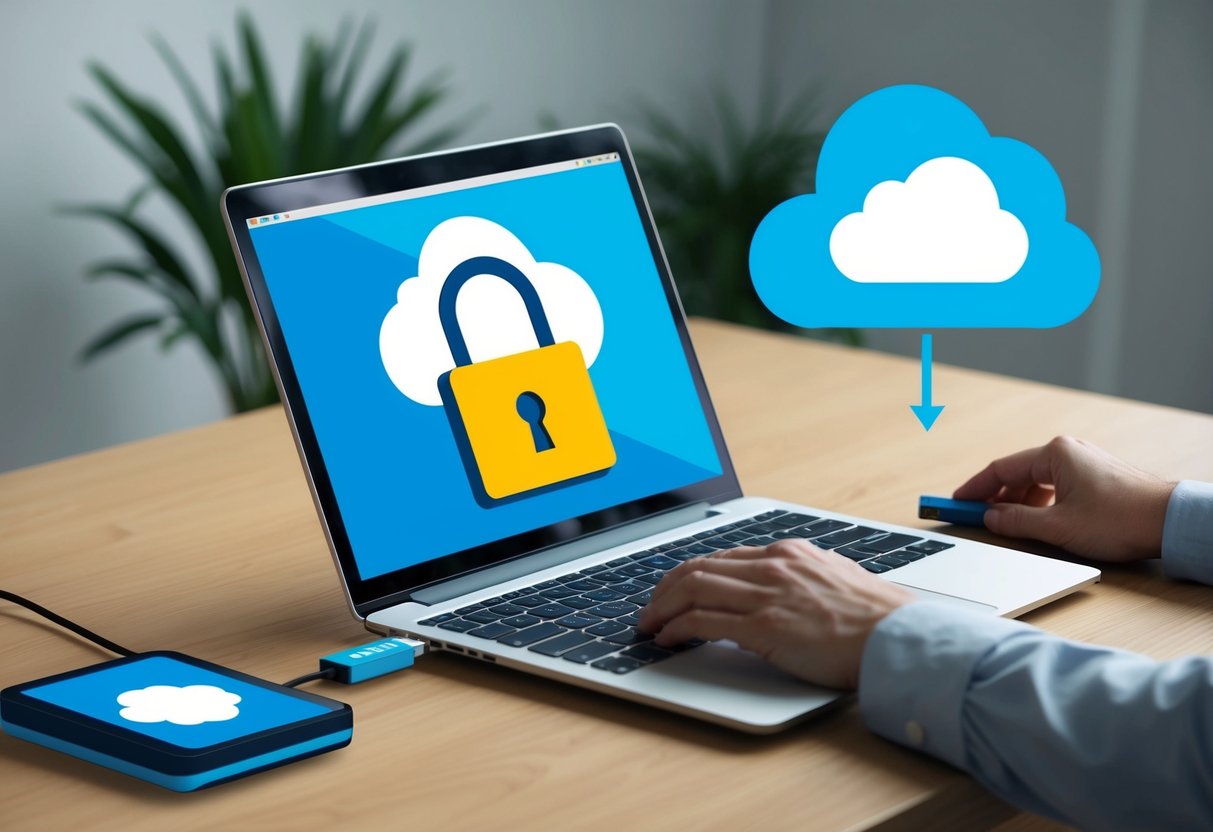
Password managers offer features to protect and restore your valuable login information. These tools help seniors keep their data safe and accessible.
Cloud-Based Versus Local Storage
Cloud-based password managers store data on secure remote servers. This allows access from multiple devices and automatic syncing. It also provides a backup if your device is lost or damaged.
Local storage keeps data on your computer or phone. This can feel more secure for some users. But it limits access to a single device.
Many password managers offer both options. Seniors can choose based on their comfort level with technology and security needs.
Data Restoration Procedures
Password managers have ways to get your data back if something goes wrong. Most use encryption to protect your information during this process.
Common restoration methods include:
- Account recovery questions
- Backup codes
- Secondary email verification
- Two-factor authentication
Some password managers offer step-by-step guides for data recovery. This helps seniors easily restore their information.
It’s important to keep backup codes or recovery information in a safe place. This ensures you can always access your passwords, even if you forget your master password.
Customer Support for Seniors
Password managers know that seniors may need extra help. Many offer special support for older users.
Good customer service is key for seniors using password managers. Top companies provide multiple ways to get help.
Phone support is often preferred by seniors. Some password managers have dedicated phone lines for older users.
Easy-to-use apps are important too. The best password managers have simple interfaces designed for seniors.
Email support is another option. Many companies aim to answer senior questions within 24 hours.
Some password managers offer video tutorials. These can help seniors learn the software step-by-step.
Live chat is becoming more common. It lets seniors get quick answers without long phone waits.
Key support features for seniors:
- Large text options
- Clear instructions
- Patient staff
- Extended support hours
Password managers may also offer family plans. These let younger relatives help set up and manage accounts for seniors.
Remote support is helpful for seniors who can’t leave home easily. Some companies can guide users through issues on their computer screens.
The best password managers train their support staff to work with seniors. They understand common concerns and explain things clearly.
Transitioning to Password Managers
Moving to a password manager can boost online safety for seniors. It’s a straightforward process with two key steps.
Importing Existing Passwords
Password managers make it easy to bring in passwords from other places. Many can pull in saved passwords from web browsers like Chrome or Firefox. This saves time and prevents having to enter everything by hand.
To import passwords:
- Open the password manager’s settings
- Look for an “Import” option
- Choose the source (e.g. Chrome, Firefox)
- Follow the steps to complete the import
Some managers can even scan devices to find stored passwords. This helps catch any that might be forgotten.
Learning Curve and Tutorials
Password managers are built to be simple, but there’s still some learning involved. Most offer step-by-step guides to help new users get started.
Key things to learn include:
- Creating a strong master password
- Adding new passwords
- Using the browser extension
- Generating secure passwords
Many password managers for seniors have video tutorials. These can be helpful for visual learners. Some also offer phone support for those who prefer talking to a real person.
It’s good to start with the basics and slowly add more features. This prevents feeling overwhelmed. With a bit of practice, most seniors find password managers become second nature.
Legal and Privacy Considerations
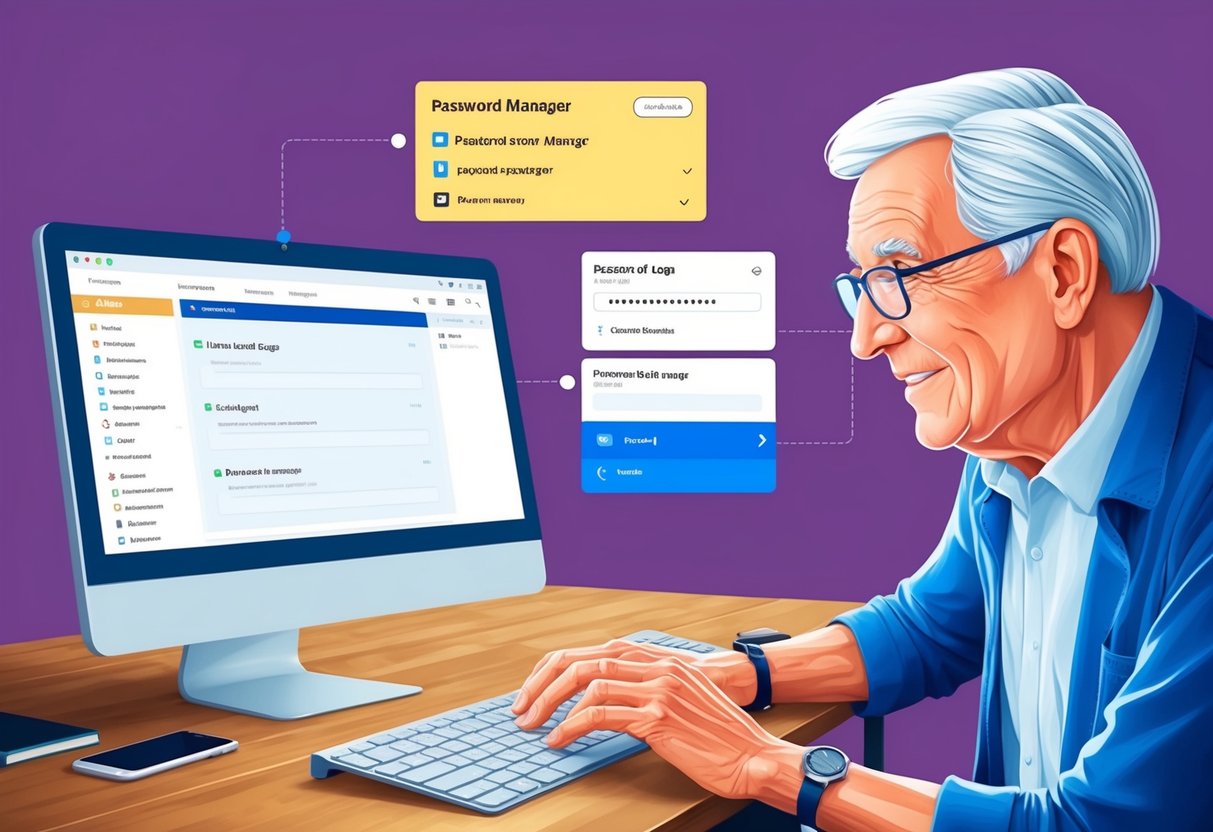
Password managers handle sensitive data, so it’s important to understand the legal and privacy aspects. Many password managers for seniors offer strong encryption to protect user information.
Companies must comply with data protection laws like GDPR in Europe and CCPA in California. These laws give users rights over their personal data and require companies to handle it carefully.
Some key privacy features to look for include:
• Zero-knowledge architecture • Two-factor authentication • Encrypted data storage • Secure password sharing
It’s crucial to read the privacy policy of any password manager before signing up. This document explains how the company collects, uses, and protects user data.
Users should also check where the company stores data. Some prefer U.S.-based storage, while others opt for countries with stricter privacy laws.
Most reputable password managers undergo regular security audits. These independent reviews help ensure the software meets high security standards.
Remember, no system is perfect. Even with strong security measures, users should stay alert and follow best practices for online safety.
Frequently Asked Questions
Password managers offer seniors simple ways to stay secure online. Some provide easy interfaces, while others focus on top-notch protection. Free options exist, and many have features just for older adults.
What is the easiest password manager for seniors to use?
NordPass is known for its user-friendly interface, making it a top choice for seniors. Its simple design and easy navigation help older adults manage their passwords without confusion.
The app’s large buttons and clear labels make it easy to read and use. NordPass also offers a straightforward setup process, ideal for those less familiar with technology.
Which password manager offers the highest level of security?
1Password stands out for its strong security features. It uses advanced encryption to protect passwords and personal data.
The app includes a feature called Watchtower, which alerts users to weak or reused passwords. 1Password also offers two-factor authentication for an extra layer of protection.
Are there any password managers recommended specifically by security experts?
Security experts often recommend LastPass and Bitwarden for their robust security measures. These managers use strong encryption and have undergone third-party security audits.
Both offer features like secure password sharing and emergency access, which can be helpful for seniors and their caregivers.
What are the best free password managers suitable for older adults?
Bitwarden offers a solid free plan that works well for seniors. It provides unlimited password storage and syncing across devices at no cost.
Another good free option is LastPass, which offers a user-friendly interface and basic password management features in its free tier.
Can password managers be easily adopted by aging parents for their digital security?
Yes, many password managers are designed with ease of use in mind. Keeper, for example, focuses on simplicity and strong security, making it a good choice for aging parents.
Family plans allow adult children to help set up and manage their parents’ accounts. This feature can ease the transition to using a password manager.
Do any password managers offer features explicitly tailored for senior users?
Some password managers include features that can be particularly helpful for seniors. RoboForm, for instance, offers a simplified interface and larger text options.
Dashlane provides an emergency access feature, allowing trusted contacts to access accounts if needed. This can be crucial for seniors in case of health emergencies.


